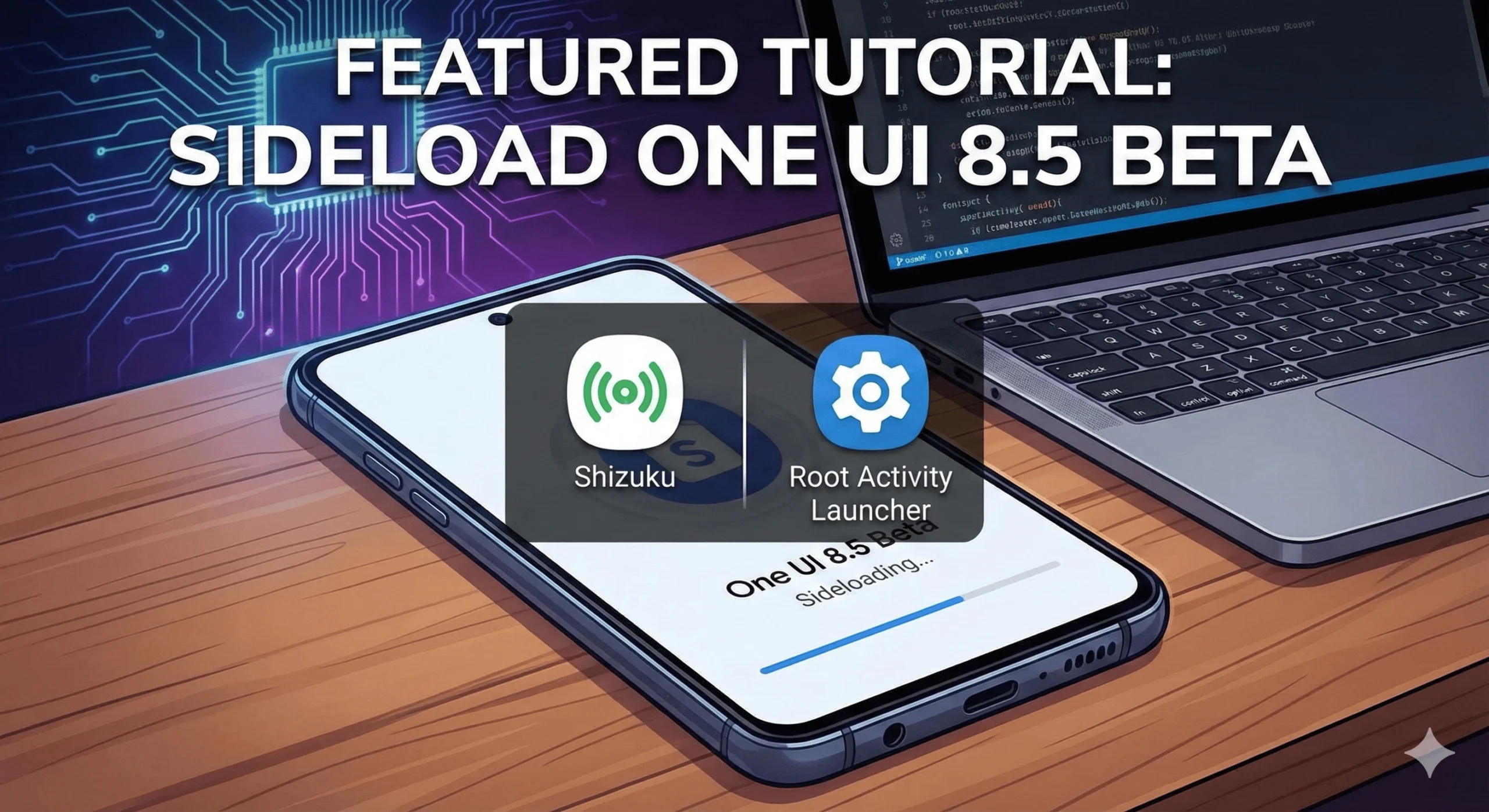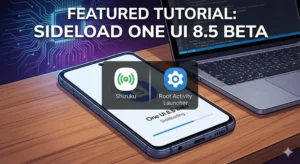
Are you trying to figure out how to sideload One UI 8.5 beta on your Samsung Galaxy device without using a computer? You aren’t alone. Many users want early access to Samsung’s latest features but don’t want to mess with complex ADB commands on a PC.
This guide will walk you through the entire process using Shizuku and Root Activity Launcher. This method allows you to trigger the official system update from a file stored directly on your phone.
⚠️ Warning: Sideloading beta firmware carries risks.
Back up your data: There is always a chance of data loss.
Check your model: Ensure the
update.zip or .binfile matches your specific model number (e.g., SM-S928B). Flashing the wrong file can brick your device.Battery: Charge your phone to at least 50% before starting.
Prerequisites
Before we begin the installation, ensure you have the following ready:
The One UI 8.5 Beta file (
.binor.zip) specifically for your model.Shizuku app (installed from Play Store).
Root Activity Launcher app (installed from Play Store).
A stable Wi-Fi connection (required for Shizuku pairing).
Also Read- Quickshare now compatible with AirDrop
Step 1: Prepare the One UI 8.5 Update File
To learn how to sideload One UI 8.5 beta successfully, file placement is critical. The system updater looks for a specific name in a specific location.
Open your file manager (like “My Files”).
Locate the beta file you downloaded.
Rename the file to exactly:
update.zipTip: Make sure you don’t accidentally name it
update.zip.zip.
Move this file to the Root directory of your Internal Storage.
This means it should not be inside “Downloads” or any other folder. It must sit cleanly at the bottom of your main storage list.
Step 2: Configure Shizuku (Wireless Debugging)
Shizuku is the tool that lets us access system permissions without rooting the phone.
Open Settings > Developer Options.
If hidden: Go to About Phone > Software Info > Tap “Build Number” 7 times.
Enable Wireless Debugging.
Open the Shizuku app.
Tap Pairing under the “Start via Wireless Debugging” section.
Tap “Pair device with pairing code”.
Enter the 6-digit code shown in the popup into the Shizuku notification bar.
Return to the Shizuku main menu and tap Start. You should see “Shizuku is running.”
Step 3: Access the Hidden Updater via Root Activity Launcher
This is the core step in understanding how to sideload One UI 8.5 beta. We will use a hidden system activity to force the update.
Open Root Activity Launcher.
Grant it permission to use Shizuku when prompted.
In the search bar, type
fotaagent.We are looking for the package:
com.idm.fotaagent.
Click on the result to expand the list of activities.
Scroll down and look for an activity named:
AdminMainActivity(Full path:com.idm.fotaagent.enabler.ui.admin.main.AdminMainActivity)
Tap this activity to launch the hidden developer menu.
Step 4: Install the One UI 8.5 Beta
Now that you are in the FOTA (Firmware Over The Air) Admin menu:
Look for an option labeled “Sideload” or “Install from SD Card”.
Note: If your file is on internal storage, the system should automatically detect the
update.zipyou prepared in Step 1.
Select the file.
Your device will verify the package signature.
Once verified, the phone will reboot into recovery mode and begin installing One UI 8.5.
Do not turn off your phone during this process. It may take 10–15 minutes.
Troubleshooting Common Issues
Q: The updater says “File Not Found.”
A: Double-check that the file is named exactly
update.zip(case sensitive) and is in the main Internal Storage folder, not inside a subfolder.
Q: Shizuku keeps stopping.
A: Wireless debugging turns off automatically if you disconnect from Wi-Fi. Ensure you are on the same Wi-Fi network throughout the setup.
Q: I can’t find fotaagent.
A: On some older devices, the package is named
Software Update(com.wssyncmldm). Try searching for that instead.
Conclusion
Knowing how to sideload One UI 8.5 beta using Shizuku is a great skill for enthusiasts who want to avoid PC drivers and cables. By following these steps, you can enjoy the latest Samsung features safely.